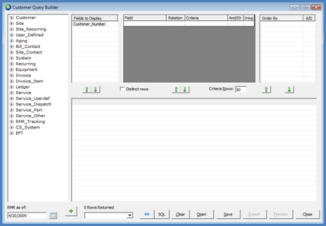
Client Management Customer Query Builder Designing a Report Query
This section will walk through the step by step creation of a simple report query, the printing of the query results and saving the report query design to a file. The end result of this sample report will be a list containing customer names and addresses for customers that are actively being billed for recurring services. The primary sort for the report will be on the zip code field with a secondary sort on the city field. The report will only include a customer’s primary billing address.
1. Open the CQB Report Query form. From the Main Application Menu select Query / Customer Query.
2. The CQB Query Design form will be displayed. Expand the tree of the first Data Group that contains fields that will be listed on the report. To expand a Data Group the User may either press the “+” to the left of the Data Group or double-click on the Data Group name.
2024
.png)
ss3040